Posts

How to get rid of coil whine just by tweaking BIOS

Finally. No more ringing in my ears! I had a really bad case of coil whine with my computer. In the end I fixed it just by tweaking the BIOS! The coil whine was at it's worst when the PC was idling or under a light load.  Coil whine is a high-pitched sound that is produced by coils resonating at a high frequency. It is really hard to sense where exactly it's coming from. This is because humans cannot sense direction for high-pitched sounds. At first I thought it was my graphics adapter. So I bought a new used one. But the ringing was still there after the upgrade. Next up, I suspected my PSU was the culprit. So I changed the power supply to a newer 80 Plus Platinum model. I hate changing the PSU. And it didn't help. So it looked like my motherboard was the cause. It's an older ASUS motherboard, P8H67-V.  After googling around a bit, I found people talking about ASUS motherboards and coil whine when power-saving features are on in the BIOS . The so-called "C-state...
Guide: Play Starbound coop in local network with one license

Image
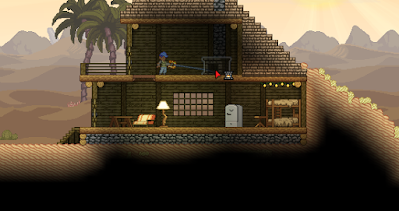
  There are some instructions all around the internet on how to play Starbound co-op multiplayer with your friends, but most of them are needlessly convoluted. Many of them ask you to run a Starbound server. But you don't actually need to run anything else than the game itself. This guide applies to two people, but others can join as well. The players should all be connected to the same home network via wifi or an ethernet cable. I got my version of Starbound from the gog.com store. But this guide should work with all versions of the game on Windows 10. Find the local IP address of the player who hosts the game Let's say the 1st player is the one who is hosting the game. They need to check their local IPv4 IP address. That is where the game is running.  You can find out your local IP by pressing the windows key, typing "cmd" in the search, and then by typing "ipconfig". From there, find you IPv4 address. The printout will look something like this: Wireless ...

Fixed: Problems starting Ken Follett's The Pillars Of The Earth

Image
  At the moment, you can get Ken Follett's The Pillars Of The Earth (and two other games - Deponia: The Complete Journey and The First Tree) for free on epicgames.com. I highly recommend doing as I did and getting them with a couple of clicks! But when launching the game, I was greeted with an error. There seems to be some bug with the Epic games version. I think the problem is caused by the space in my Epic games username. The error message reads: Init failed, could not load game. There is no game file or the game file is corrupted. For more info view messages.log. When clicking OK, the messages.log file opens, with text like this: 19:04:09.352:m_gamePath: C:\Games\PillarsoftheEarth\NAME" 19:04:09.352:Loading game from file 'NAME"' failed! 19:04:09.352:Init failed, could not load game The message would look like that if your username is "USER NAME". But don't worry. You can still launch the game. Go to the folder where the game is installed (in my c...

How to route audio output to any app on Windows 10

Image
I needed to input audio to a browser on Windows 10. We were developing a HTML5 app and wanted to use audio to control it. Specifically, we wanted to route the audio we were listening to (from Spotify) to the browser (Firefox) for use as an input. On Linux, it's much easier to route the audio you're hearing to whatever program. But on Windows 10, this is not always possible without some effort. Some programs on Windows 10 allow you to choose the audio output as an input. An example of this is the Audacity sound editor / recorder. But browsers typically only allow you to choose the microphone as an audio input. Step 1: Routing audio output as an input to a program For this purpose, I found a piece of software called VB-CABLE . I didn't need ASIO in this case, as I was just playing music from Spotify. For ASIO output you should try the HiFi-Cable software instead. ASIO is necessary for those who want to route sound from a professional audio DAW software such as Ableton Live, ...

Exporting to a CMYK color profile with GIMP on Windows 10

Recently I had to export some image for CMYK printing. The print house was requesting a certain FOGRA color profile. I don't have any Adobe licenses and am doing all the image work on GIMP, so I had to do a bit of research. Googling around, I found two options to export images. A plugin called "Separate" and another plugin called Cyan . It looked like Separate is not maintained anymore , so Cyan was my choice. Here's how to do it: Download Cyan, Run Cyan once and select some profiles as "default" profiles. I'm a bit unsure why you need to do this, but this is how it works for some reason. Restart GIMP and you should see the Cyan drop down in the file menu. From there, you can select to export any file you've opened with GIMP. Close Cyan and browse to this location with Windows File Explorer: C:\Users\<YOUR USERNAME>\.config\Cyan\icc Copy any .icc color profile files you want to use to that folder. Now you can select those new profiles the next...

How to remove Your Phone, People, Get Help and other useless apps from Windows 10

Image
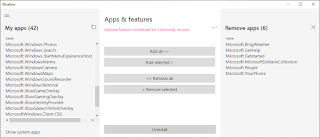
 I recently came across a great piece of open source software: Bloatbox . It allows you to remove unwanted bloatware that came with the Windows 10 installation. For some weird reason these cannot be uninstalled through the windows apps catalog. But now there is a cure for that. Download bloatbox from it's github page and run the .exe file. Then select the apps you want to remove and click Uninstall.   Here are some recommendations to remove: Microsoft.BingWeather Microsoft.GetHelp Microsoft.GetStarted Microsoft.MicrosoftSolitaireCollection Microsoft.People Microsoft.YourPhone

Lenovo ThinkPad PowerMgr.exe error 0x0000007E

Image
Suddenly, I started getting this error on a Lenovo ThinkPad, with Windows 10 64-bit: PowerMgr.exe 0x0000007E The specified module could not be found. Open Device Manager by pressing Windows button and typing "device manager" and hitting enter. Locate System Devices, and Lenovo Power Manager from there. Right-click and Select Uninstall Device. Select to Delete device driver and click OK. Then click on Action, Scan for hardware changes. The Lenovo Power Manager device will reappear. Reboot your PC. The problem should be fixed now!