Posts

Fix for Focusrite Scarlett blue screens on Windows 10

UPDATE: Focusrite have released a new version of their driver , which is compatible with all the 1st-generation Scarlett devices. So there is no need to install old drivers anymore! Recently I got a used Focusrite Scarlett 2i4 (1st gen) and I was very pleased with the sound and feel of it from the start. First thing to do was to download the driver from Focusrite's official page . Their drivers still work for Windows 10, although not officially supported. Then I plugged it in, and... It didn't work. I had plugged it to a blue USB 3.0 port. After trying one of the black USB 2.0 ports, it worked fine. And it sounds very nice! Unfortunately, not long after I got it my Windows 10 PC started bluescreening once a week. After a bit of wondering I realized the issue: The USB cable I used must be an old USB 1.0 cable, while the Scarlett 2i4 is a USB 2.0 device! After changing the cable to a USB 2.0 one I never had a bluescreen again. And, probably the Scarlett 2i4 also work...
How to fix apt "Cannot initiate the connection" on Ubuntu headless

Today, while updating my Ubuntu headless server, I got some errors from the mirror I was using: sudo apt-get update Err:1 http://fi.archive.ubuntu.com/ubuntu xenial InRelease Cannot initiate the connection to fi.archive.ubuntu.com:80 connect (101: Network is unreachable)  ...and so on. Seems there is some problem with fi.archive.ubuntu.com, or maybe they stopped serving updates for my old LTS version of Ubuntu. This was solved with some editing of /etc/apt/sources.list sudo nano /etc/apt/sources.list I replaced http://fi.archive.ubuntu.com/ubuntu/ with mirror://mirrors.ubuntu.com/mirrors.txt. If you want to be sure, leave the old lines there commented with #, so you can go back if this doesn't help. So the lines would look like this now: deb mirror://mirrors.ubuntu.com/mirrors.txt xenial main restricted  # deb http://fi.archive.ubuntu.com/ubuntu/ xenial main restricted  deb mirror://mirrors.ubuntu.com/mirrors.txt xenial-updates main restricted # deb ...

Remove annoying folders from Windows 10 File Explorer

Image
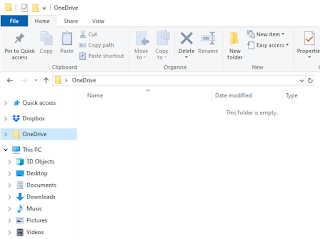
Ever wondered how to remove the annoying "OneDrive" and "3D Objects" folders from File Explorer in Windows 10? Here's an image of what I'm talking about: I removed OneDrive already since I don't use it. But the OneDrive folder persists in File Explorer, and you cannot delete it. Another thing that always bugs me is the "3D Objects" folder. I am never going to need that one. Even if I some day create some 3D Objects, I would like to place them in another folder and not have this shortcut visible everytime I open File Explorer. Removing the OneDrive folder from File Explorer What you need to do is press start button and type "regedit" and press enter. Using the Registry Editor, find the following entry: Computer\HKEY_CLASSES_ROOT\CLSID\{018D5C66-4533-4307-9B53-224DE2ED1FE6} Double click on the "System.IsPinnedToNameSpaceTree" key. Change the Value data from 1 to 0. The OneDrive folder is no longer in F...

How to install Windows 3.1 on dosbox

Image
Here's how to isntall Windows 3.1 on your Dosbox, from floppy images 1) Download the Windows 3.1 installation of your choice from here. Select preferably a 3.5 inch floppy release. 2) Use 7-zip to open and extract each DiskXX.img file to some directory 3) Run dosbox 4) Mount some directory as your C: drive - this is where you will install Windows. mount c c:\dosboxdir\ 5) Mount the directory you extracted all the floppies in to A: drive mount a c:\win31 6) Run the installer a: setup 7) Press enter two times to start the Express install 8) After install, Select Return to MS-DOS and close DOSBox to get rid of the floppy mount. 9) Restart DOSBox, mount your C: drive again and Enjoy your Windows 3.1!

How to scan with an old HP ScanJet on a Windows 10 machine

Image
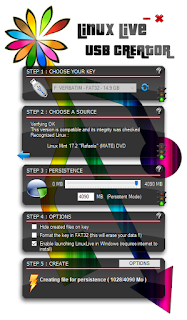
I think it's a sin that HP doesn't support their old scanners on newer Windows machines. This way they end up in landfills and HP can make money selling new ones. I'm running Windows 10 and was unable to use the old HP ScanJet 6300 I have, since there is no TWAIN driver available for it. So I googled around and found a program called VueScan, which implements their own driver for old scanners. It was nice, but the trial version leaves a nasty big watermark. And the cost is crazy. 40€ for simple scanning and 90€ for OCR? A new scanner is cheaper! If a VueScan developer is reading this, I would have gladly paid 5€ for your program, with OCR. I hope you consider re-thinking your prices. So here is a guide how you too can keep your old Scanner working without VueScan. The answer is called Linux, specifically a Live USB stick. It takes about 10-20min to create the stick. You just need an USB thumb drive with some 8 GB of free space. 4 GB should probably work too. 1) Down...

How to get to BIOS settings of an ASUS motherboard

I know it's hard to believe, but sometimes the restart process of your PC is too fast. If you are having a hard time getting to BIOS settings, check these tips out. In my case, I needed to enable the Intel Virtualization technology in order to use Oracle Virtualbox VM. 1) Make sure all your connected monitors are on. In my case, the BIOS image shows on my TV and not my computer monitor. So if you use multiple monitors, turn them all on! 2) Restart windows 3) Press DELETE key when you see the ASUS logo on any monitor 4) If that doesn't work, keep hitting the DELETE key during the restart even if you don't see it. 5) If even that doesn't work, try attaching the keyboard to another USB port on your computer. 6) The last option is to trying with another keyboard. Good luck!

Solution to Nokia 5 tethering problems

The Nokia 5 is a great phone for it's price. But it seems to have some problems with the tethering hotspot function. The hotspot often stops working after a while. It seems to happen when you move between base stations. After that, you can no longer connect to internet with your tethered computer. A reboot of the Nokia 5 will help, but you need to do this all the time and it's quite annoying. I found out that a reboot isn't needed. The problem with the tethering seems to be caused by the Nokia 5 not giving a working DNS address to the tethered computer. If you change the DNS addresses of your computer to 1.1.1.1 and 8.8.8.8 (both are free to use public DNS servers), the tethering will work without booting you Nokia 5.